

How to Use VoiceInk on Mac: Setup, Modes & Recommended Settings
VoiceInk is a macOS dictation app designed to turn spoken words into text and then adapt that text to different workflows. Instead of treating voice input as simple dictation, VoiceInk lets you configure separate Modes for tasks such as writing, email, rewriting text, and voice-driven AI assistance.
The basic workflow is straightforward: record your voice, transcribe it with a selected model, optionally enhance the result with AI, and then send the finished text to the active application. The useful part is how much of that process you can customize.
This guide walks through how to install VoiceInk, configure your first Mode, use automatic Mode Triggers, choose between local and cloud AI models, improve transcription with Vocabulary and Word Replacements, and build practical setups for email, writing, coding, notes, and privacy-focused workflows.
Note: VoiceInk’s features, supported models, and settings can change as the app is updated. This guide focuses on the current workflow and official documentation; specific options may vary by VoiceInk version and configuration.
Table of Contents
What Is VoiceInk?
VoiceInk is a native macOS voice-to-text application that lets you dictate text across your Mac and customize how that text is processed.
A VoiceInk workflow can include four main stages:
- Recording — VoiceInk captures your spoken input using the configured recording shortcut.
- Transcription — A selected speech-to-text model converts your audio into text.
- AI Enhancement — When enabled, an AI provider can clean up, rewrite, format, or otherwise process the transcript.
- Output — The final result can be pasted into the active application, returned inside the recorder, or sent to a custom command.
This separation is what makes VoiceInk more flexible than a basic dictation tool. Different Modes can use different transcription models, prompts, context sources, output behavior, triggers, and shortcuts.
VoiceInk System Requirements
Supported Mac and macOS Versions
| Requirement | Current Requirement |
| macOS | macOS 14.4 or later |
| Processor | Apple Silicon Mac |
| License | One-time purchase |
| Internet | Required for cloud-based services and other online features |
What You Need Before Installing
- A working Mac microphone
- Microphone permission
- Accessibility permission
- Screen Recording permission when Screen context is enabled
- Internet access when using cloud transcription or cloud AI providers
How to Install and Set Up VoiceInk on Mac
Step 1: Download and Install VoiceInk
- Download VoiceInk from the official website.
- Open the downloaded application.
- Drag VoiceInk into your Applications folder.
- Launch VoiceInk.
- If macOS blocks the first launch, approve VoiceInk under System Settings → Privacy & Security.
Step 2: Grant macOS Permissions
| Permission | Why VoiceInk Needs It |
| Microphone | Records your voice for transcription |
| Accessibility | Handles global shortcuts, paste/auto-send actions, and selected-text context |
| Screen Recording | Allows Screen context to read visible window text when enabled |
Step 3: Complete the Initial Setup
- Follow the onboarding prompts.
- Choose your initial workflow or Mode.
- Configure your preferred recording shortcut.
- Confirm your transcription settings.
- Review your Modes before starting regular dictation.
Step 4: Make Your First VoiceInk Recording
Once VoiceInk is running, place your cursor in a text field and use your configured recording shortcut. Speak naturally, stop the recording, and let VoiceInk process the audio using the active Mode.
For your first test, use a short sentence. This makes it easy to confirm that your microphone, shortcut, transcription model, and output behavior are working correctly.
How VoiceInk Works
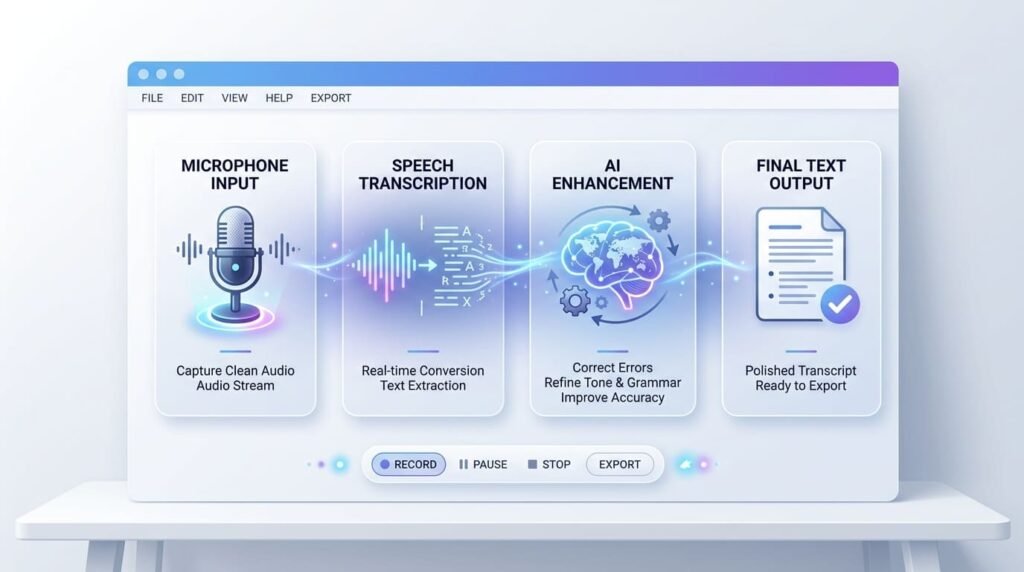
The easiest way to understand VoiceInk is to separate the workflow into four layers.
- Record — VoiceInk captures your spoken input.
- Transcribe — A selected speech-to-text model converts the audio into text.
- Enhance — When AI Enhancement is enabled, the transcript can be cleaned up, reformatted, rewritten, or processed according to the selected prompt.
- Output — VoiceInk can paste the final text, return an assistant-style response, or send the text to a custom command.
Understanding VoiceInk Modes
Modes are the heart of VoiceInk. A Mode defines how a particular dictation session should behave, including its transcription settings, AI enhancement, context, output, triggers, and shortcut.
Dictation Mode
Dictation Mode is the simplest place to start. It is designed for fast speech-to-text without requiring AI rewriting.
Use it for quick notes, search boxes, chat messages, forms, or any situation where you want your spoken words converted into text with minimal processing.
Enhancement Mode
Enhancement Mode adds an AI processing layer to your dictation. It can clean up rough speech, improve punctuation and structure, and adapt the final text according to the selected prompt.
It is especially useful when you want to speak naturally instead of carefully dictating polished sentences.
Email Mode
Email Mode is designed for turning spoken ideas into email-ready text. Instead of dictating every sentence exactly as you want it written, you can describe the message naturally and let the selected AI prompt structure the result.
Rewrite Mode
Rewrite Mode is useful when you already have text on screen and want VoiceInk to modify it.
For example, you can select a paragraph and give a spoken instruction such as “make this shorter,” “make this more professional,” or “rewrite this in a friendlier tone.”
Assistant Mode
Assistant Mode is different from normal dictation because the result can be returned inside VoiceInk instead of simply being pasted into the active application.
This makes it more suitable for voice-driven questions, brainstorming, summaries, and other AI-assisted tasks.
VoiceInk Modes at a Glance
| Mode | Best For | AI Enhancement | Typical Output |
| Dictation | Fast everyday typing | Optional / Off | Pasted text |
| Enhancement | Polished writing | On | Pasted text |
| Email drafting | On | Pasted email | |
| Rewrite | Editing selected text | On | Rewritten text |
| Assistant | Voice-driven AI tasks | On | Recorder response |
How to Set Up Your First VoiceInk Mode
New users do not need to build a complicated workflow on day one. The easiest approach is to start with one simple Mode and add automation later.
Beginner Setup: Dictation Mode
| Setting | Recommended Starting Point |
| Mode | Dictation |
| Transcription | Local model |
| AI Enhancement | Off |
| Output | Paste |
| Trigger | Default Mode or shortcut |
Beginner Setup: Enhanced Writing
| Setting | Recommended Starting Point |
| Mode | Enhancement |
| Transcription | Fast local model |
| AI Enhancement | On |
| Context | Add selected text when useful |
| Output | Paste |
Beginner Setup: Email
| Setting | Recommended Starting Point |
| Mode | |
| Transcription | Local model |
| AI Enhancement | On |
| Prompt | Email drafting |
| Trigger | Email app or webmail site |
Which Mode Should You Start With?
| Your Goal | Start With |
| Fast voice typing | Dictation |
| Polished writing | Enhancement |
| Email drafting | |
| Editing existing text | Rewrite |
| Asking AI questions by voice | Assistant |
How VoiceInk Mode Triggers Work
Once your basic setup works, Mode Triggers can reduce the amount of manual switching you need to do.
VoiceInk supports App Triggers, Website Triggers, Word Triggers, and keyboard shortcuts.
App Triggers
An App Trigger connects a Mode to a specific macOS application.
For example, you could configure an Email Mode for Mail or a writing-oriented Mode for a document editor.
Website Triggers
Website Triggers allow a Mode to respond to a specific domain or URL.
For example, a webmail site can use Email Mode while a document platform can use a different writing Mode.
Word Triggers
Word Triggers let spoken phrases switch Modes after transcription.
For example, you could say “rewrite this” or “assistant” and configure those phrases to activate a specific Mode.
Keyboard Shortcuts
A keyboard shortcut can start recording directly with a specific Mode. This is useful when one application needs more than one workflow.
How VoiceInk Chooses a Mode
VoiceInk can combine automatic and manual Mode selection. Depending on your configuration, the active application, website, spoken trigger, or assigned keyboard shortcut can determine which Mode handles a recording.
This makes automatic switching useful once you have more than one repeatable workflow.
Choosing the Right VoiceInk AI Model
VoiceInk separates transcription from AI enhancement. The transcription model turns your audio into text, while the enhancement layer can clean up, rewrite, format, or otherwise process that transcript.
Local Transcription Models
Local models process transcription on your Mac. They are the natural starting point when privacy, offline operation, or reduced dependence on external services is important.
VoiceInk supports multiple local transcription options, including Parakeet, Whisper, Apple Speech, and other models depending on the current configuration.
Cloud Transcription Models
Cloud transcription can be useful when you prefer hosted speech-recognition services or want to reduce processing on your Mac.
VoiceInk supports multiple cloud providers, with the exact available options depending on the current version and configuration.
AI Enhancement Models
AI Enhancement happens after transcription. This layer can clean up text, rewrite selected content, draft emails, or process voice instructions according to the selected prompt.
VoiceInk supports both cloud and local enhancement providers.
| Priority | Best Starting Direction |
| Maximum privacy | Local |
| Offline use | Local |
| Reduce local processing | Cloud |
| Hosted transcription | Cloud |
| Text polishing | AI Enhancement |
| Custom infrastructure | Custom provider |
Local vs. Cloud Processing: Which Should You Choose?

| Feature | Local Processing | Cloud Processing |
| Audio processing | Stays on Mac when using local transcription | Sent to selected cloud provider |
| Internet | Can work offline | Requires internet |
| Privacy | Strong choice for privacy-focused workflows | Depends on provider |
| Hardware | Uses local Mac resources | Offloads processing to cloud |
| Cost | No external API usage required | Provider/API costs may apply |
| Best For | Privacy and offline use | Hosted processing |
Best VoiceInk Settings for Different Workflows
Best Setup for Email
| Setting | Recommendation |
| Mode | |
| Transcription | Fast local model |
| AI Enhancement | On |
| Context | Selected text when replying |
| Trigger | Email app / webmail |
| Output | Paste |
Best Setup for Writing & Content Creation
| Setting | Recommendation |
| Mode | Enhancement |
| Transcription | Fast local model |
| AI Enhancement | On |
| Prompt | Structure + grammar cleanup |
| Vocabulary | Add recurring industry terms |
| Output | Paste |
Best Setup for Coding & Technical Work
Use a dedicated Coding Mode when technical terminology, structured text, or application-specific behavior differs from your normal writing workflow.
A practical setup is a reliable transcription model, custom Vocabulary for technical terms, and a conservative enhancement prompt that avoids changing code syntax or identifiers unnecessarily.
Best Setup for Quick Notes & Brainstorming
Start with Dictation Mode and keep AI Enhancement off or minimal.
The goal is low friction: press the shortcut, speak naturally, and get the text into your notes without adding an unnecessary processing step.
Best Setup for Maximum Privacy
For a privacy-focused workflow, use local transcription and a local enhancement provider rather than cloud services.
This keeps the processing path on your Mac as much as possible and avoids sending dictation to an external transcription provider. Always verify the individual Mode’s model and provider settings before using sensitive material.
Improve VoiceInk Accuracy With Vocabulary & Word Replacements
Vocabulary
Vocabulary provides contextual hints for names, terminology, phrases, and other words you use regularly.
For example, if your workflow frequently contains product names or technical terms, adding them to Vocabulary can help the AI understand the words in context.
Word Replacements
Word Replacements are better for deterministic corrections.
For example, if a transcription repeatedly produces “voice ink” when you need “VoiceInk,” a replacement rule can force the desired wording after transcription.
Auto Learn Dictionary
VoiceInk also includes an Auto Learn feature that can help identify vocabulary or replacement opportunities from your post-dictation corrections.
Example: Fixing a Repeated Transcription Error
Suppose VoiceInk repeatedly turns:
“VoiceInk”
into:
“voice ink”
Use Vocabulary when you want to provide contextual guidance.
Use Word Replacements when you want a deterministic correction from the incorrect form to the exact form you want.
5 Practical Ways to Use VoiceInk on Mac
1.Write Emails Faster
Speak your main points naturally rather than dictating every sentence perfectly.
Email Mode can then turn the rough spoken input into a more polished message before it is pasted into your email application.
2.Draft Articles and Long-Form Content
Voice input is especially useful for getting ideas out of your head quickly.
Use Dictation when you want raw text. Switch to Enhancement when you want the spoken draft reorganized into cleaner paragraphs.
3.Capture Notes Without Typing
Use Dictation Mode for quick notes in Notion, Apple Notes, or other text editors.
The main advantage is reducing the friction between having an idea and getting it onto the page.
4.Work With Technical Content
A dedicated Mode can be useful for programming notes, technical documentation, commit messages, and other work where terminology differs from ordinary writing.
Add frequently misrecognized terms to Vocabulary and use a conservative AI prompt when the text contains technical syntax.
5.Use Voice as an AI Interface
Assistant Mode lets you interact with AI using your voice and keep the response inside VoiceInk rather than simply pasting it into the active application.
This can be useful for brainstorming, asking questions, summarizing content, and quick voice-driven AI tasks.
VoiceInk Quick Setup Cheat Sheet
| Goal | Mode | Transcription | Enhancement |
| Fast dictation | Dictation | Local | Off |
| Polished writing | Enhancement | Local | On |
| Email drafting | Local | On | |
| Editing text | Rewrite | Local | On |
| Chinese / CJK use | Dictation or Custom Mode | Compatible model | Optional |
| Maximum privacy | Custom local workflow | Local | Local |
The exact model available to you depends on your VoiceInk version and configured AI Models.
Is VoiceInk Worth Trying?
VoiceInk makes the most sense for Mac users who want more control than basic system dictation provides.
Its main strength is not simply transcription accuracy. It is the ability to build different voice workflows around Modes, AI Enhancement, context, output behavior, and automatic triggers.
VoiceInk Is a Good Fit If You:
- Primarily use a supported Apple Silicon Mac
- Want system-wide voice input
- Want separate workflows for email, writing, editing, and AI
- Prefer local processing when privacy matters
- Want a one-time purchase rather than a monthly subscription
You May Prefer Another Tool If You:
- Need Windows support
- Need broader mobile-platform support as your main workflow
- Want nothing more than basic, zero-configuration dictation
- Prefer a subscription model bundled with other services
VoiceInk Pricing
VoiceInk uses a one-time purchase model rather than a recurring monthly subscription. The current pricing page lists three license tiers.
| Plan | Macs | Current Price | Best For |
| Solo | 1 | $25 | One Mac |
| Personal | Up to 2 | $39 | Desktop Mac + MacBook |
| Extended | Up to 3 | $49 | Multiple Macs |
Current pricing includes lifetime access and lifetime updates. Prices can change, so check the official VoiceInk pricing page before purchasing.
Frequently Asked Questions
Is VoiceInk available for Windows?
No. VoiceInk is currently designed for Apple Silicon Macs running macOS 14.4 or later.
Does VoiceInk work offline?
Yes, when you use local models and local processing. Cloud-based transcription or AI enhancement requires the relevant online service.
Does VoiceInk use local AI models?
Yes. VoiceInk supports local transcription and local enhancement providers.
Can VoiceInk automatically switch Modes?
Yes. VoiceInk supports App Triggers, Website Triggers, Word Triggers, and Mode-specific keyboard shortcuts.
Can VoiceInk transcribe Chinese?
Yes. VoiceInk supports multiple transcription models and languages. The best model depends on the language and workflow you are using.
Does VoiceInk require an API key?
No. Local models can run without an external API key. API keys are required when you connect supported cloud providers that use your own provider account.
Is VoiceInk a subscription?
No. VoiceInk uses a one-time purchase model rather than a monthly subscription.
Final Thoughts
VoiceInk is best understood as a customizable voice workflow tool for Mac rather than a basic dictation utility.
The easiest way to get started is to keep the setup simple: begin with Dictation Mode and a local transcription model, make sure your recording and output workflow works reliably, and then add AI Enhancement, context, triggers, and custom vocabulary as your needs grow.
For privacy-focused users, local processing provides a straightforward starting point. For users who want more advanced automation, Modes and Triggers make it possible to create different voice workflows for email, writing, coding, and AI-assisted tasks.
The key is not to configure everything at once. Start with one workflow, make it reliable, and then add complexity only when it saves you time.
AiVoicePedia focuses on AI voice, speech-to-text, text-to-speech, and related productivity tools, with practical guides and tool comparisons for creators and professionals.